


- DrayOS 5
Configure WAN Using AUTOHUNT
I. Product Setup Guides
This article explains how to configure a WAN connection using the AutoHunt profile feature. AutoHunt enables the router to automatically cycle through a predefined list of ISP connection settings to establish a successful WAN connection.
AutoHunt is particularly useful in environments where the correct ISP configuration is unknown or may change, such as when deploying routers across multiple regions, replacing ISP equipment, or supporting ISPs that use different authentication or VLAN settings. Instead of manually testing each possible configuration, AutoHunt allows the router to automatically try a list of predefined connection profiles until a working WAN connection is found. This reduces deployment time, simplifies remote installations, and minimizes the need for manual troubleshooting when the exact ISP requirements are uncertain.
WAN AutoHunt is supported on routers running firmware version 5.3.1 and above.
AutoHunt with Physical Type: Ethernet
- To add a new AutoHunt profile, go to Configuration > WAN, select the WAN AutoHunt tab, and click + Add.

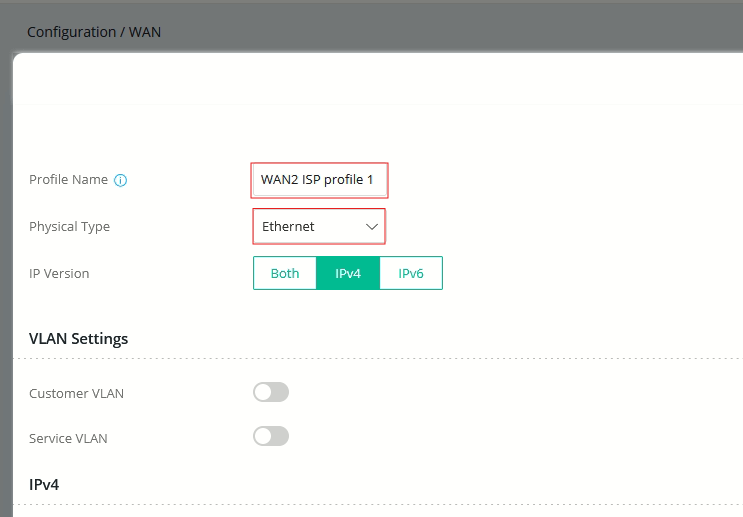
- On the next page, enter a profile name, select Ethernet as the Physical Type, and configure the following options:
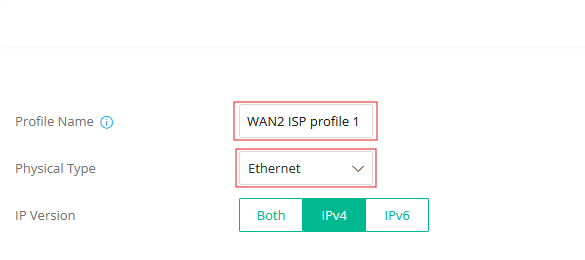
a) VLAN settings
- For most full fibre (FTTP) networks in the UK and Ireland, no VLAN tag is required for Internet connectivity.
- To disable VLAN tagging on the Ethernet WAN port, ensure that the Customer VLAN and Service VLAN Tag Insertion values are set to Disable.
b) IPv4 Connection Type:
- PPPOE: Enter the ISP-provided Username and Password.
-DHCP: Router automatically receives IP configuration from the ISP.
-Static IP: Enter WAN IP Address, Subnet Mask, Gateway, Primary DNS, and Secondary DNS
c) WAN Connection Detection
- ARP Detect
- Ping Detect (recommended)
- Always On
d) MTU
- Set the MTU to 1492 or as advised by ISP.
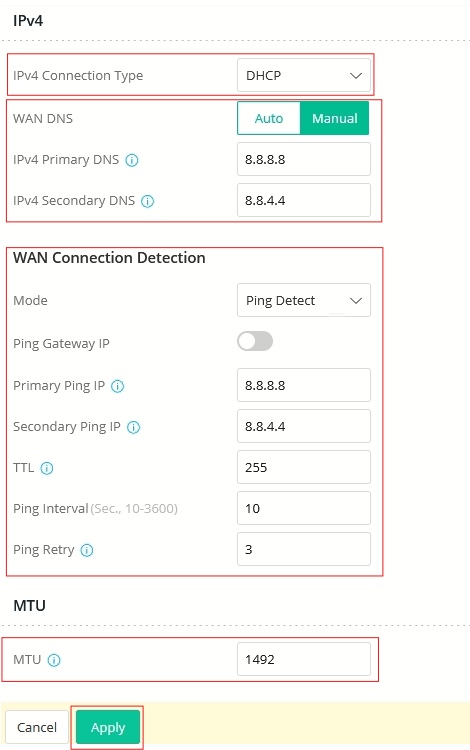
- Click Apply to save the profile.
- To apply your ethernet WAN AutoHunt profiles to the WAN, Go to Configuration > WAN> WAN Connections, click on the edit option on the wired WAN profile
- Set the setup mode to AutoHunt
- Click on +Add button and select the AutoHunt profiles to apply to this WAN
- Click on apply to save the settings
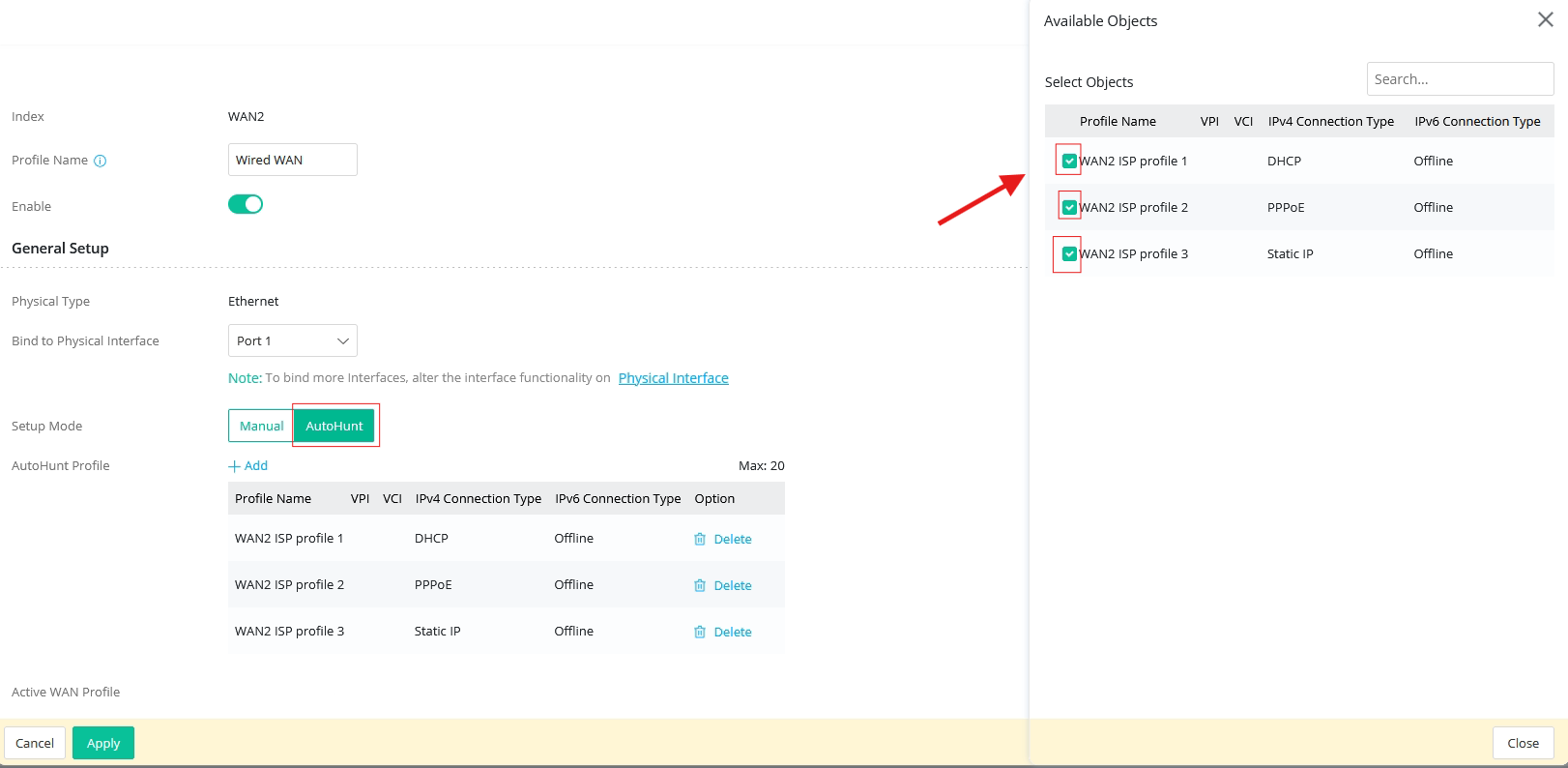
When the router connects you can see on this page the active AutoHunt profile used to establish the connection.

AutoHunt with Physical Type: DSL
- Create a DSL AutoHunt profile via Configuration > WAN > WAN AutoHunt > + Add

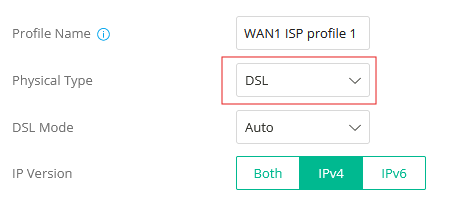
- In the next page, enter a profile name and select DSL as Physical Type and configure the following:
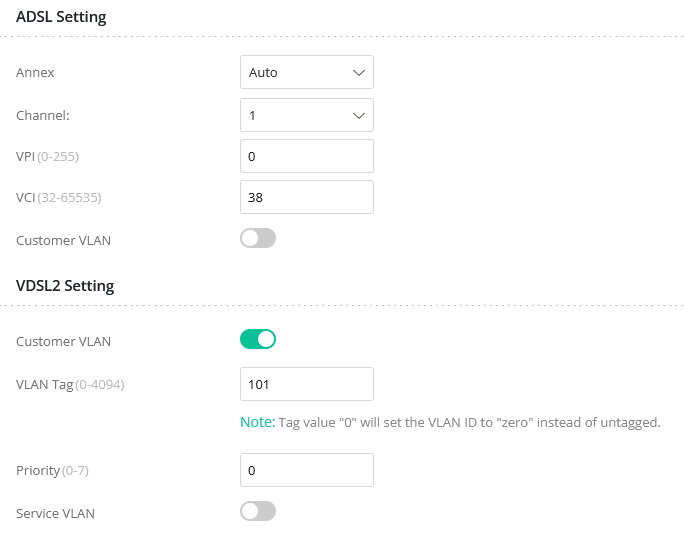
- ADSL /VDSL settings
For most UK ISPs the following setting would Apply (check with your ISP for the latest settings):
- UK: VDSL VLAN=101, ADSL VPI/VCI=0/38
- Ireland: VDSL VLAN=10, ADSL VPI/VCI=8/35
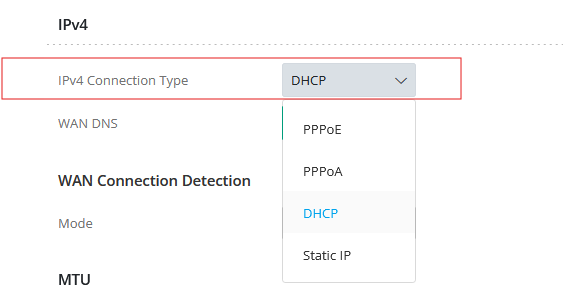
- IPv4 Connection Type:
Depending on your ISP, select either PPPoE ,PPPoA, DHCP or Static IP
- PPPoE / PPPoA (Username + Password)
- DHCP
- Static IP (WAN IP, Subnet Mask, Gateway, DNS)
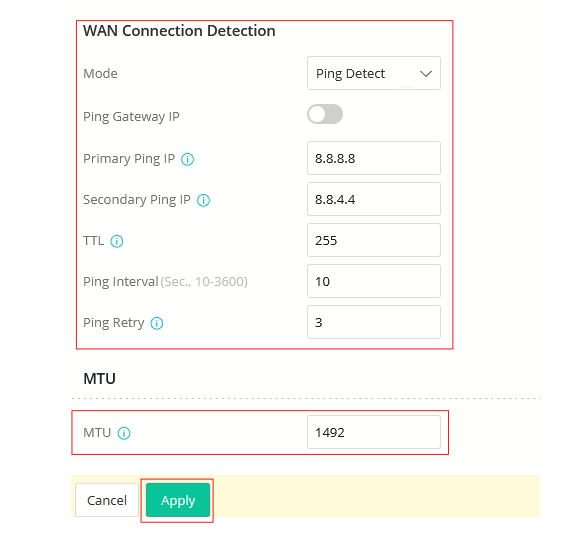
c. WAN Connection Detection
- ARP Detect
- Ping Detect (recommended)
- Always On
d. MTU
- Set the MTU to 1492 or as advised by ISP.
- Click Apply to save the profile.
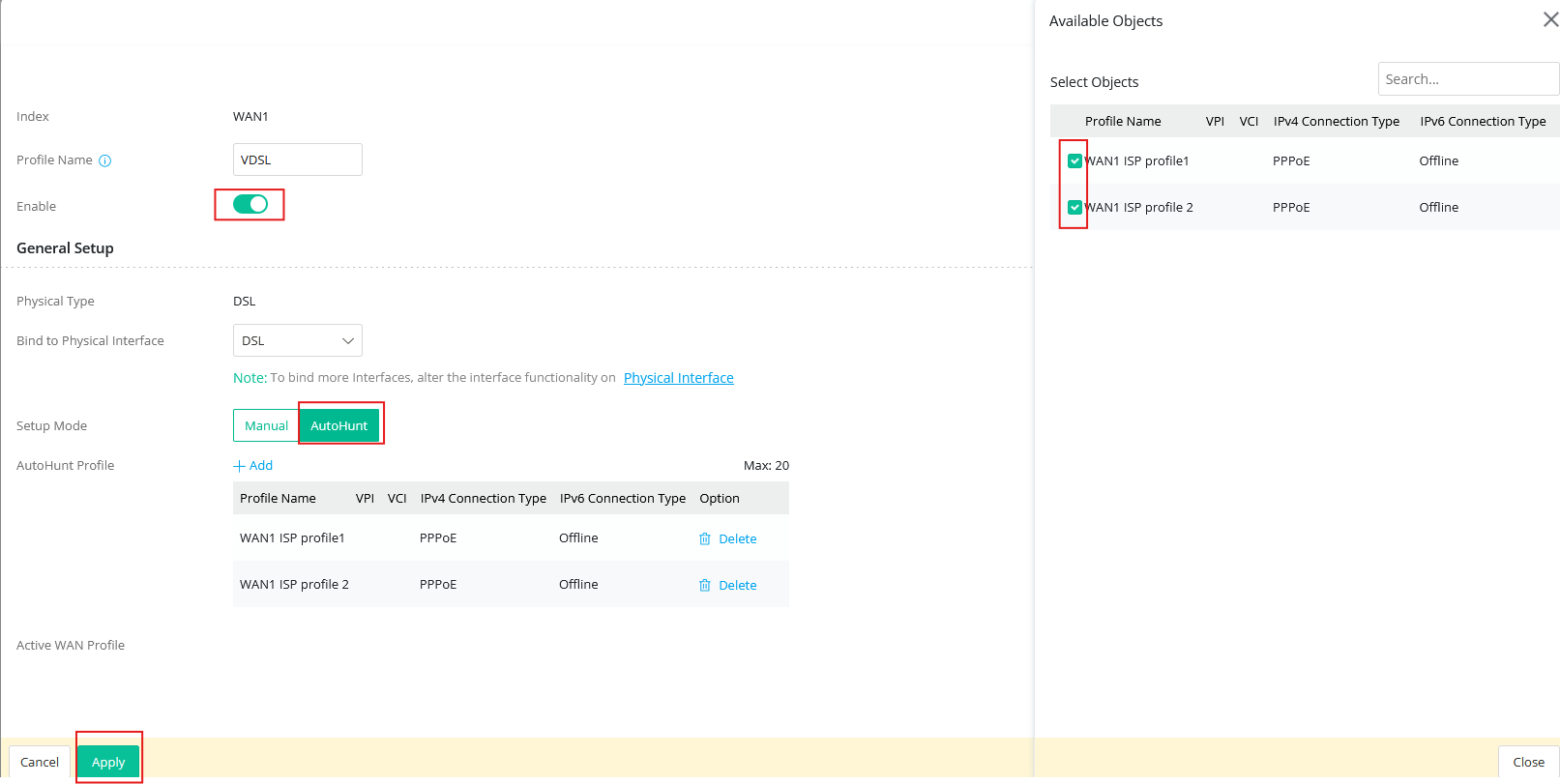
- To apply your ethernet WAN AutoHunt profiles to the WAN, Go to Configuration > WAN> WAN Connections, click on the edit option on the WAN1 profile
- Set the setup mode to AutoHunt
- Click on +Add button and select the AutoHunt profiles to apply to this WAN
- Click on apply to save the settings
Add a comment to this article
NOTE : All comments are reviewed before publication and may not be posted or may be redacted if the editors do not consider them helpful. The use of offensive or obscene language, copyrighted material, or advertising or promotion or linking to any other product or service is prohibited. By submitting your comment, you confirm that you are the original author and assign copyright of the content to DrayTek indefinitely and irrevocably.
