



- DrayOS 5
XIV. Miscellaneous Questions
ExpiredActivate the License for Threat Protection

Activate the License for Threat Protection
DrayTek Threat Protection delivers comprehensive, multi-layered security designed to safeguard your network and every connected device. With intelligent detection, real-time prevention, and advanced filtering, it ensures your business network stays secure, stable, and resilient against evolving cyber threats.
This document demonstrates how to activate the 30-day license and enable the Threat Protection service to protect your network.
License Activation
- Register the router with your Myvigor account. Click here to learn how to register the router to a Myvigor account.
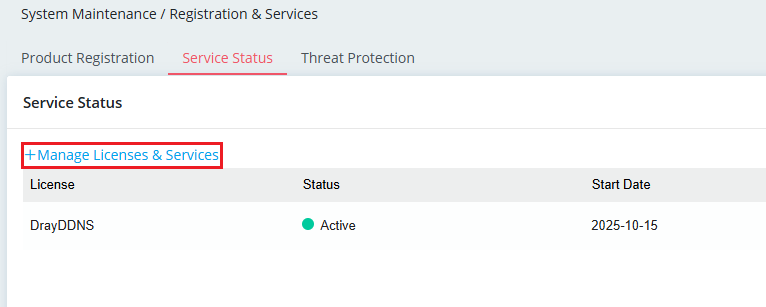
- Go to System Maintenance / Registration & Services. In the Service Status tab, click +Manage Licenses & Services. This will redirect you to the MyVigor login page.
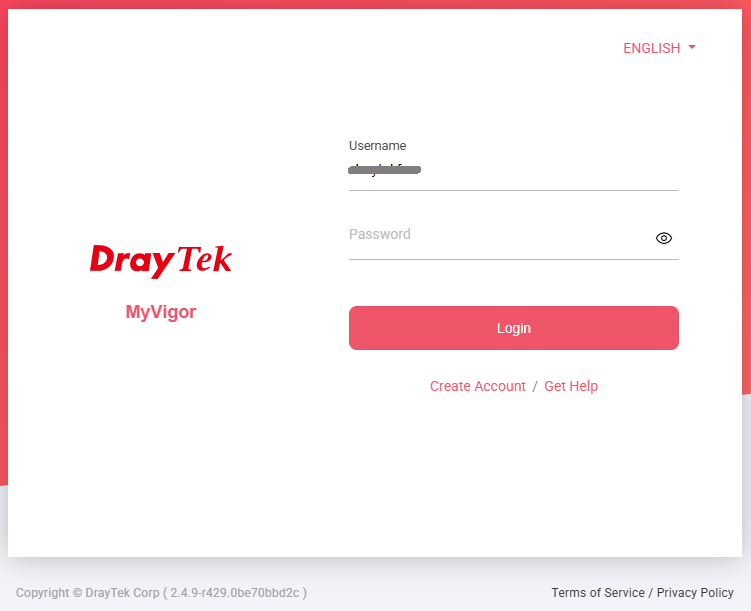
- Log in with your MyVigor account.
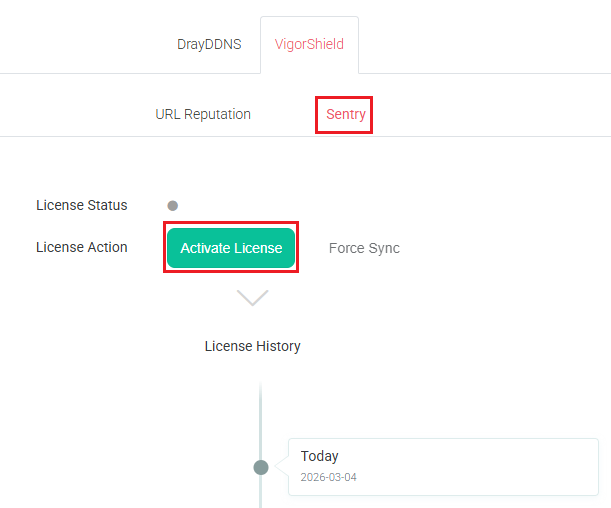
- In the VigorShield tab, choose Sentry or Guardian and click Activate License.
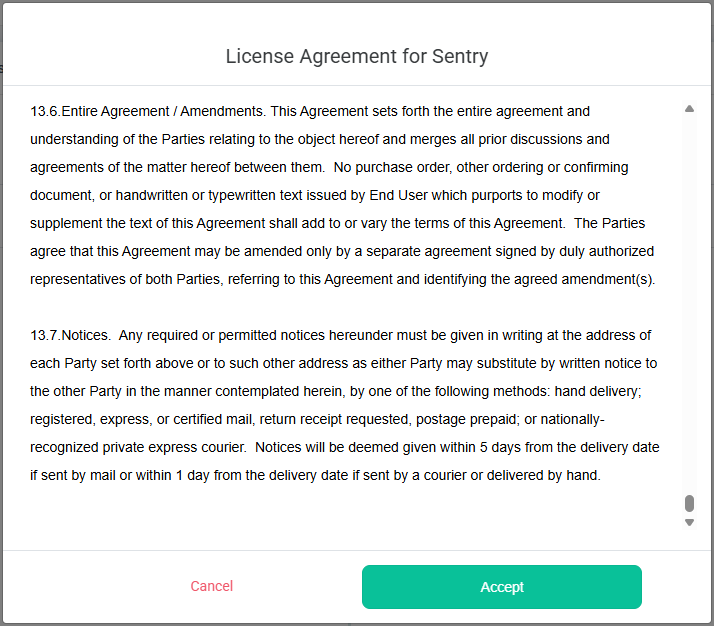
- Read the License Agreement and click Accept.
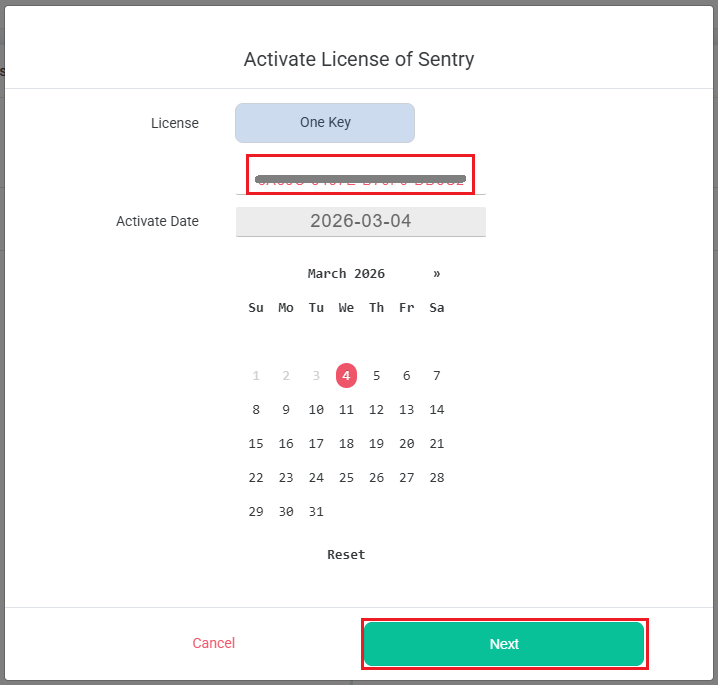
- Enter the license key, select a start date for the Threat Protection license, then click Next to continue.
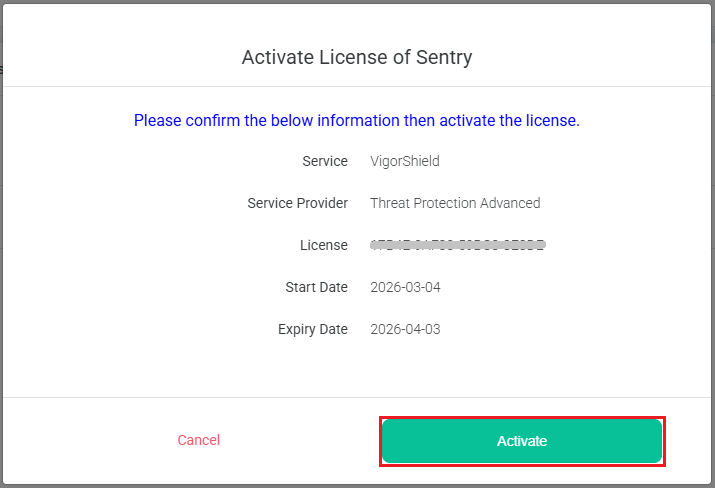
- Click Activate to activate the Threat Protection license.
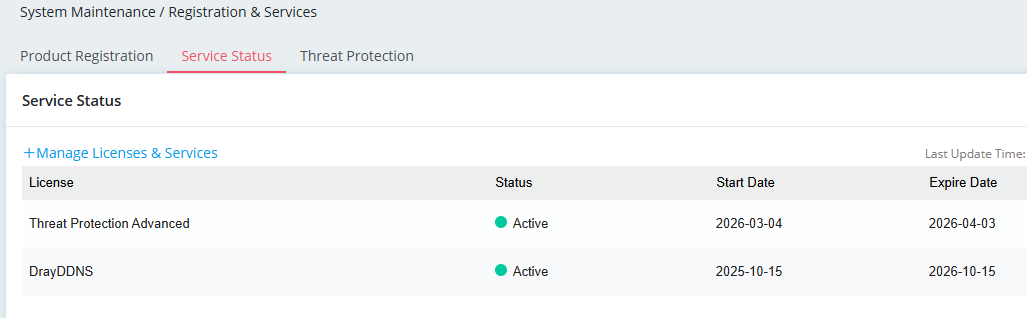
Log in router's WUI interface. We can see the Threat Protection license is active in System Maintenance / Registration & Services / Service Status.
Enable Threat Protection on the Router
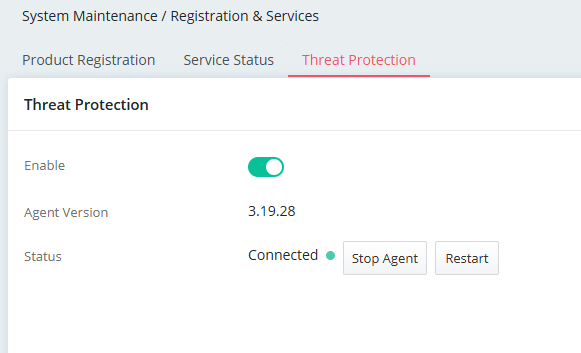
- Log in router's WUI interface. Go to System Maintenance / Registration & Services. Enable the service in the Threat Protection tab.
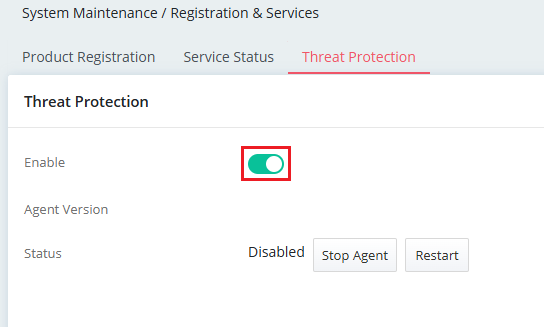
- The status will display "Connected" after refreshing the page. The Threat Protection service is now active and protecting your network.
Manage and Monitor on the User Portal
After activating the license, please contact support@draytek.co.uk to obtain the user account credentials for portal access.
Please note that it may take up to one working day for the system to process and generate the user account after the license has been activated on the router.
After obtaining the user account, please visit vs.draytek.com and log in using the provided credentials. For the first login, the portal will require you to change your password.
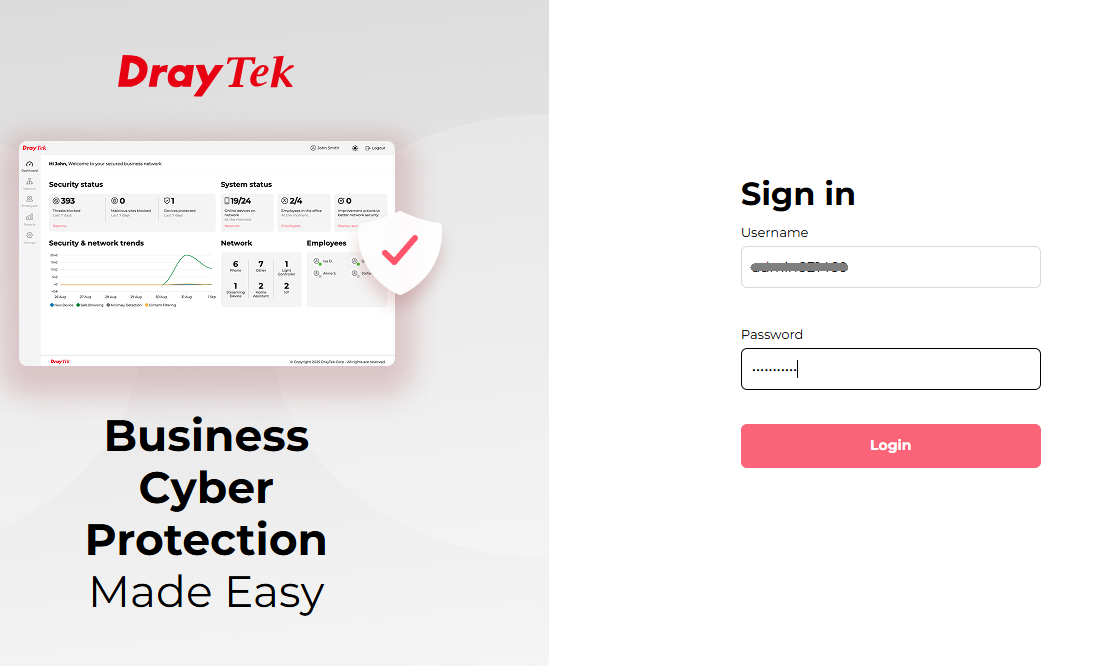
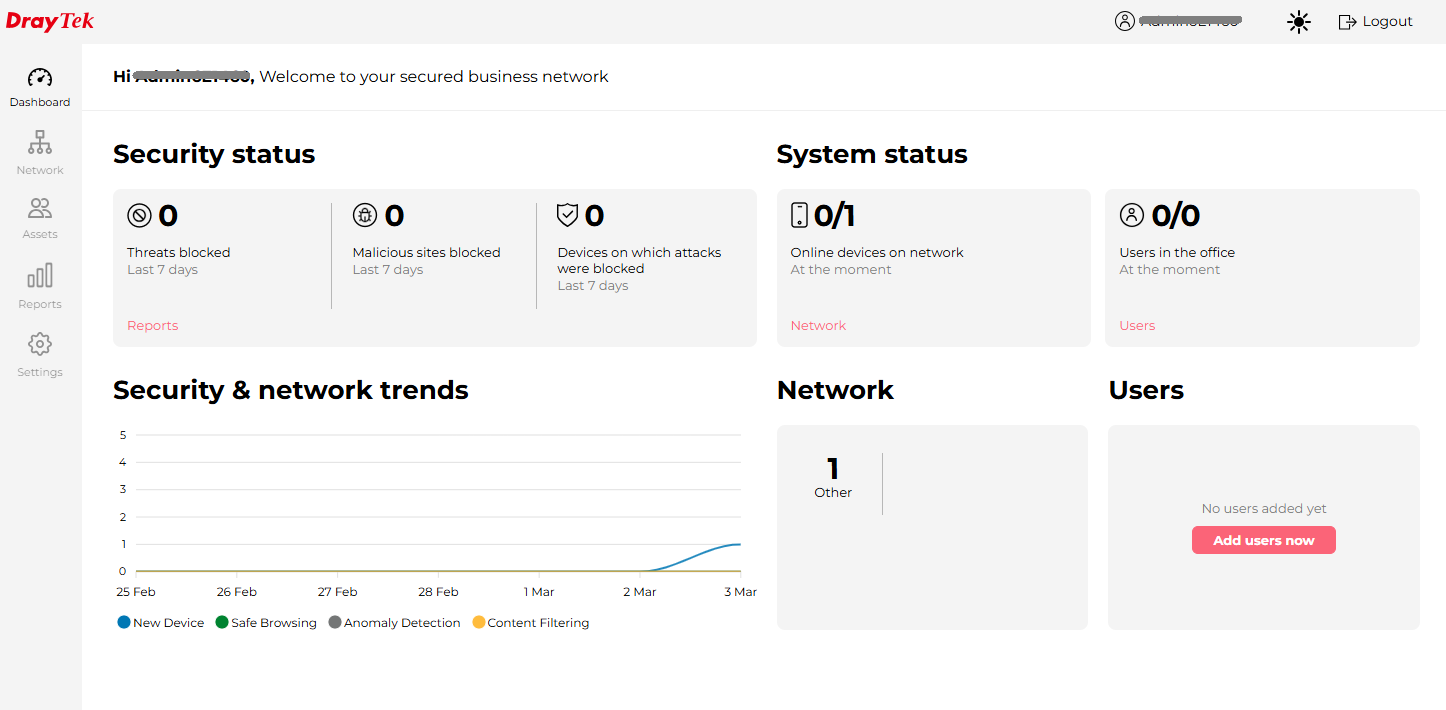
Once logged in, you will be able to manage and monitor your devices through the portal.
Add a comment to this article
NOTE : All comments are reviewed before publication and may not be posted or may be redacted if the editors do not consider them helpful. The use of offensive or obscene language, copyrighted material, or advertising or promotion or linking to any other product or service is prohibited. By submitting your comment, you confirm that you are the original author and assign copyright of the content to DrayTek indefinitely and irrevocably.